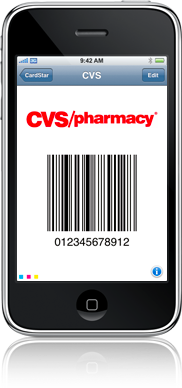
 Every day it seems like there’s a new iPhone application that makes life a little easier.
Cardstar is one of those. It lets you get rid of your plastic loyalty cards that’s taking space in your wallet or hanging on your key chain.
Cardstar simply stores and recreates your loyalty cards in your iPhone. All you have to do is to choose your merchant from a list and enter your id number. Cardstar generates the barcode that you use when checking out. Currently there are over 190 companies listed in 7 different categories.
If your store isn’t listed, Cardstar gives you the option of generating different barcodes based on common barcode generating methods. My gym isn’t one of the businesses listed, but I was able to recreate the barcode by trying different generation methods until I got one that visually matched what is printed on my card.
Here are some tips from the Cardstar FAQ on how best to use Cardstar:
Are there any tips for insuring a successful scan?
1) Make sure the screen is free of dust and fingerprints. The screen MUST be clean in order to scan properly.
2) Keep the screen just shy of perpendicular to the scanner and hold the barcode image steady (don’t wave around).
3) Hold the screen approximately 5-7 inches from the scanning device.
4) Keep the screen in a vertical (portrait) orientation. Only use horizontal (landscape) orientation when the barcode is too wide to display otherwise.
UPDATE 7/13/09
Had trouble using Cardstar at the Cincinnati Public Library. The barcode scanner at the library is tilted at an angle to make it easier to scan the barcode on books. If you tilt the iPhone at the proper angle to be scanned, the barcode flips its orientation from vertical to horizontal making it unscanable.
I wrote an email to the developers suggesting a way of locking the direction and they said they’d think about it for the next version.